
Running LM Studio Locally in 2026
A real setup walkthrough on modest hardware, from first launch to your first local chat.
I installed LM Studio on a regular Windows machine with 16GB of RAM and an 8GB GPU, downloaded a model, loaded it, and started chatting without sending a single token to the cloud. Here is exactly how I did it, screenshot by screenshot.
Why I Wanted My Own Local Chatbot
I have been pasting client documents into ChatGPT for over a year and it finally started bothering me. Nothing bad happened, but every time I pasted something even slightly sensitive I felt that small pause, that quiet question of where exactly that text was going. So I decided to try running a chatbot entirely on my own machine, no subscription, no server on the other end, just my laptop doing the thinking.
I settled on LM Studio because it is the closest thing to a plug and play experience in the local AI space right now. You are not editing config files or fighting with Python environments, you are clicking buttons in a normal desktop app. This is my honest, screenshot by screenshot record of setting it up, running into a small hiccup along the way, and getting a model talking to me from a local server.
My setup for this guide: Windows, 16GB of DDR4 RAM, and a GPU with 8GB of VRAM. If your hardware looks similar, stick to models in the 7B to 9B range with Q4 quantization, that is the sweet spot I landed on too.
First Launch, An Empty Chat Waiting For A Model
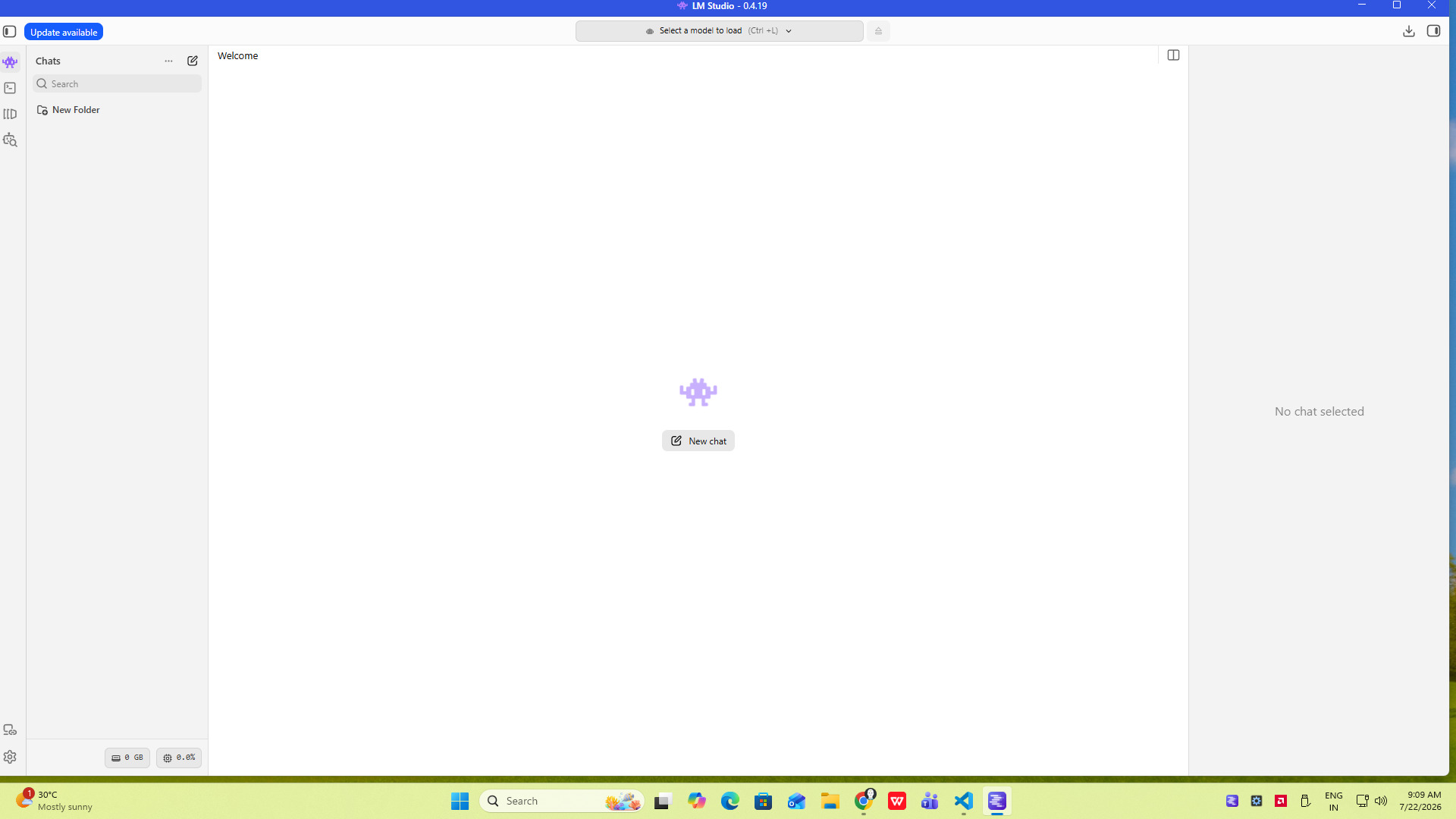
The install itself is nothing to write home about, you download the app from the official site and run it like any other Windows program. What you land on afterward is a clean welcome screen with a New Chat button in the middle and a prompt at the top telling you to select a model to load. Nothing works yet, and that is exactly the point, LM Studio wants you to consciously pick what you are running before anything happens.
Checking What Models I Already Had
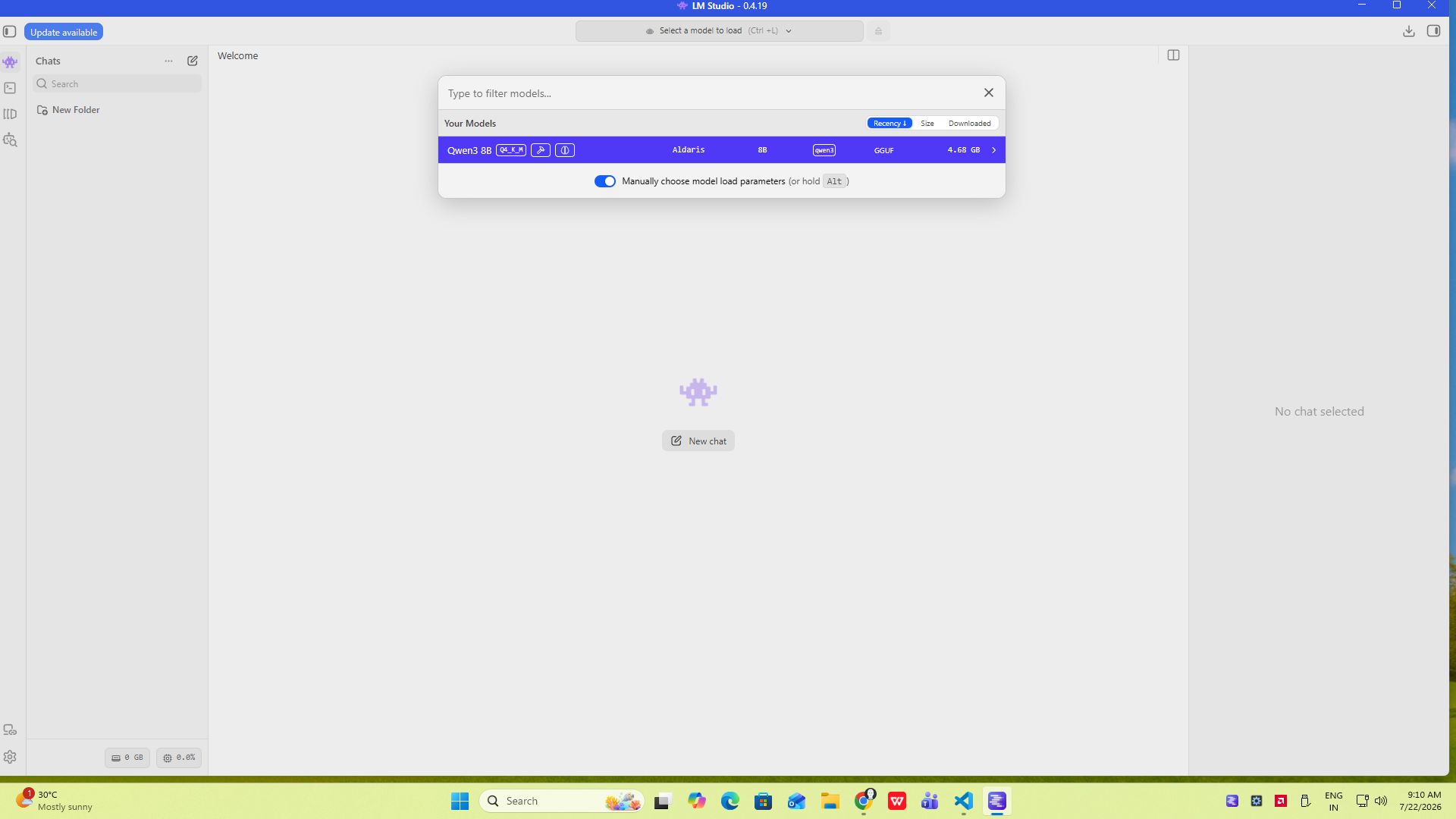
Clicking that model selector at the top opens a panel called Your Models. In my case I had already pulled down a Qwen3 8B build at Q4_K_M quantization, sitting at just under 4.7GB on disk. If this is your first time opening LM Studio this list will be empty, and that is fine, it just means you go straight to searching the marketplace instead.
When You Type The Name Slightly Wrong
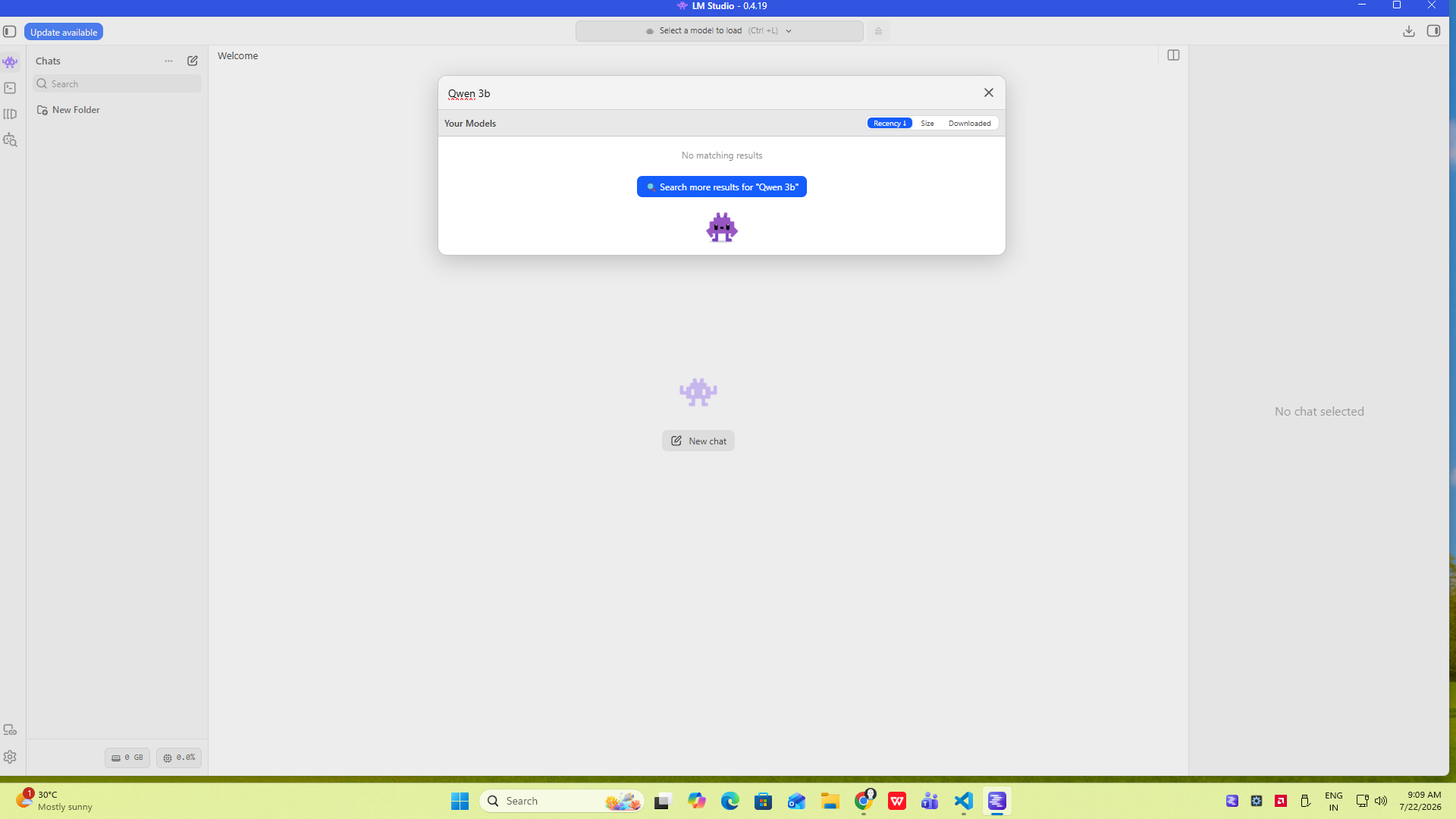
I typed Qwen 3b into the filter box instead of the exact model name and got nothing back locally, just a message saying no matching results with a button offering to search the wider catalog for that term. This is a small thing but it tripped me up for a second, so worth mentioning, the local filter only matches what you have already downloaded, it will not fuzzy search the whole internet for you.
Searching The Full Model Marketplace
Switching to the actual marketplace search and typing Qwen pulled up close to a thousand results, everything from the newer Qwen3.6 releases down to smaller 2B variants. Each listing shows the parameter count, the architecture, the format, and whether it supports vision or tool use, which made it easy to compare options without opening ten browser tabs. I clicked into the Qwen3.5 9B listing just to see the details, native context length, download size, and a full readme right there in the app.
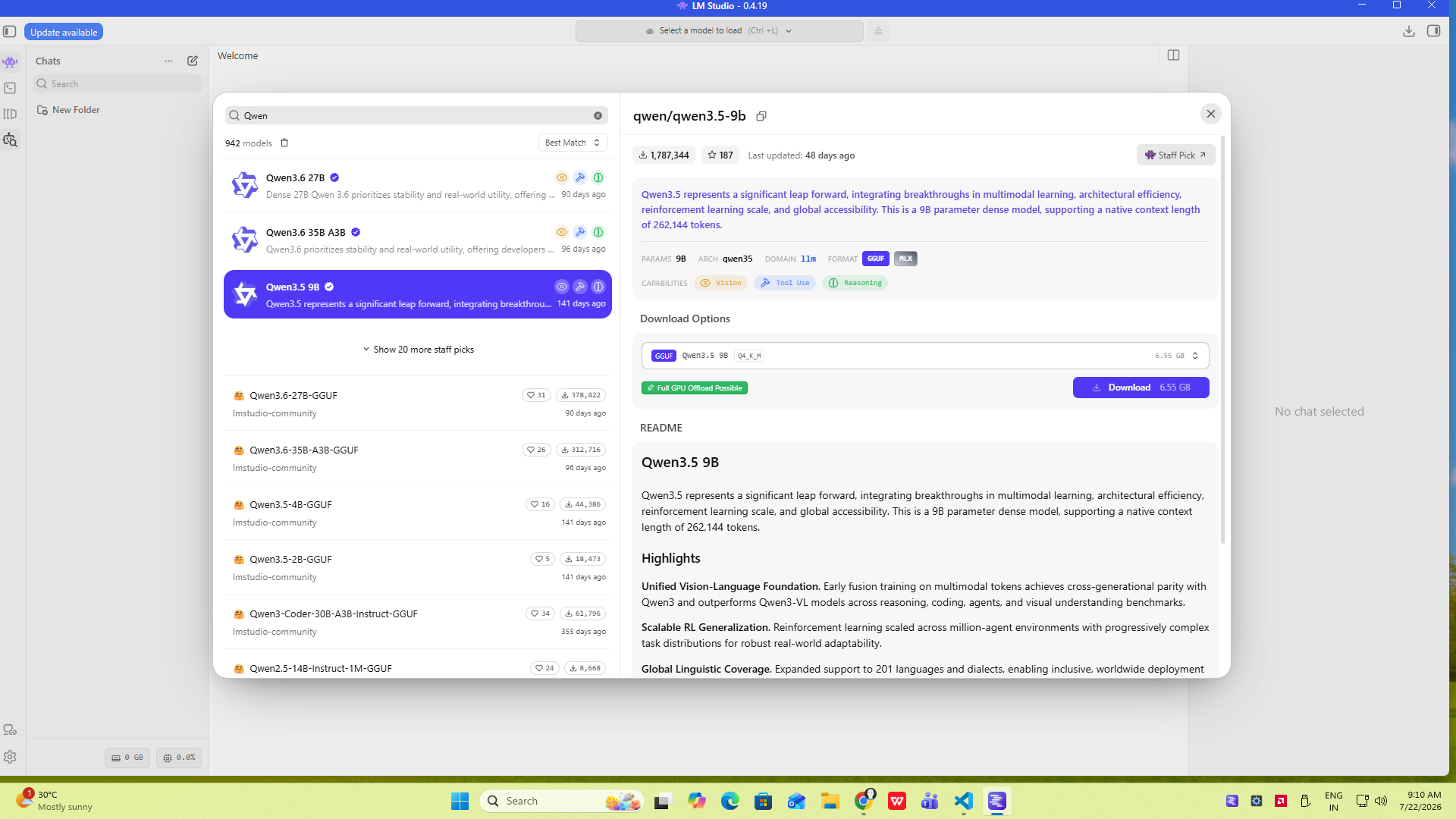
For my actual daily use I stuck with the Qwen3 8B build I already had. On 8GB of VRAM it offloads almost entirely to the GPU, and that is really the number to watch if your hardware looks like mine, not the parameter count on its own but how much of the model actually fits in VRAM.
Loading The Model Back Up
Back in the picker with Qwen3 8B highlighted, I left the manual load parameters toggle on because I wanted to see the memory numbers before committing, rather than letting the app pick defaults silently.
Turning On The Local Server
This is the part that separates LM Studio from a simple chat app. Switching to the Developer tab shows a Local Server panel with a status toggle, and once it is running you get a real address, http://127.0.0.1:1234, that speaks the same language as the OpenAI API. Before loading a model this screen just lists the supported endpoints with no chat happening yet.
Loading A Model Specifically For The Server
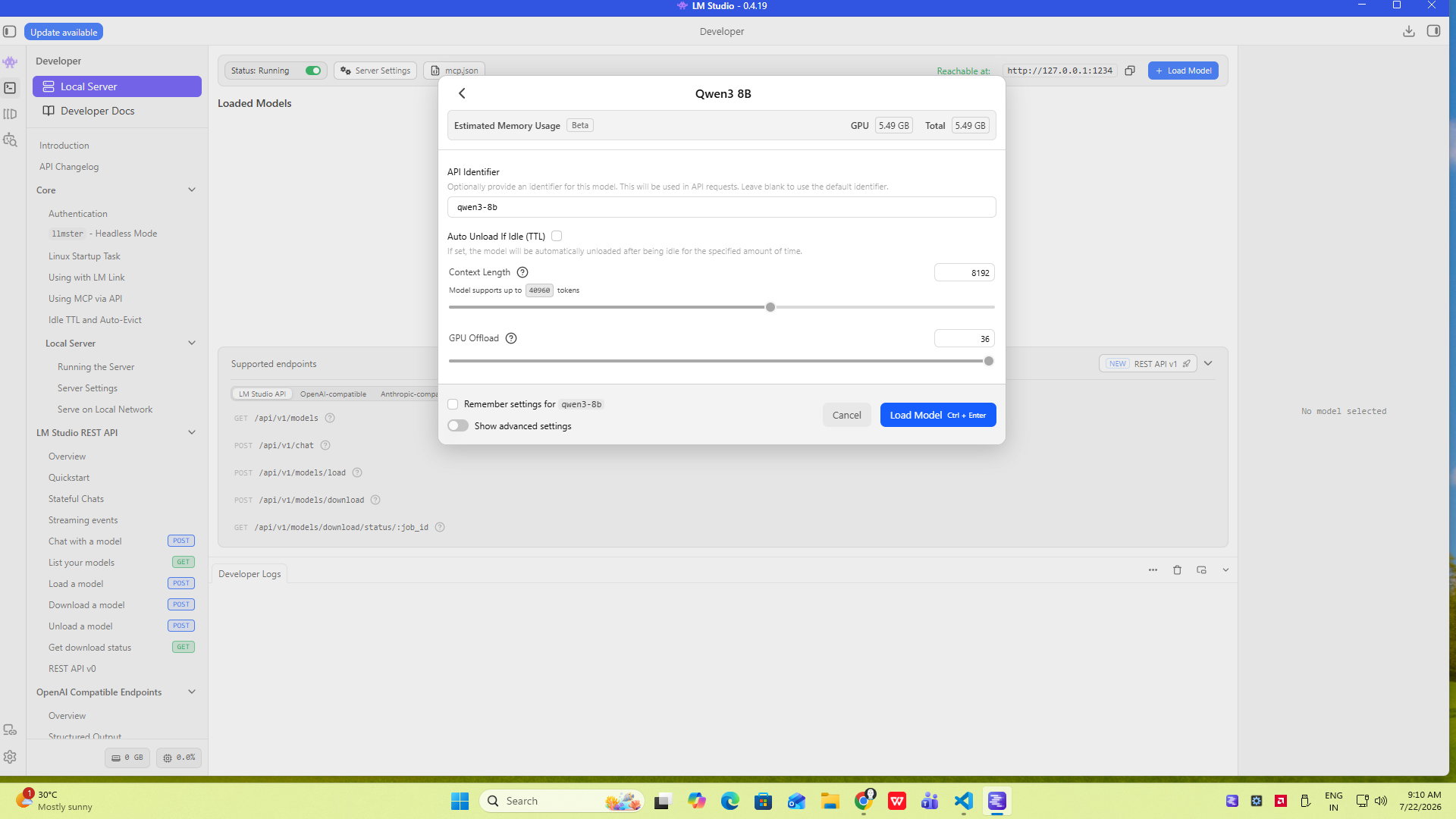
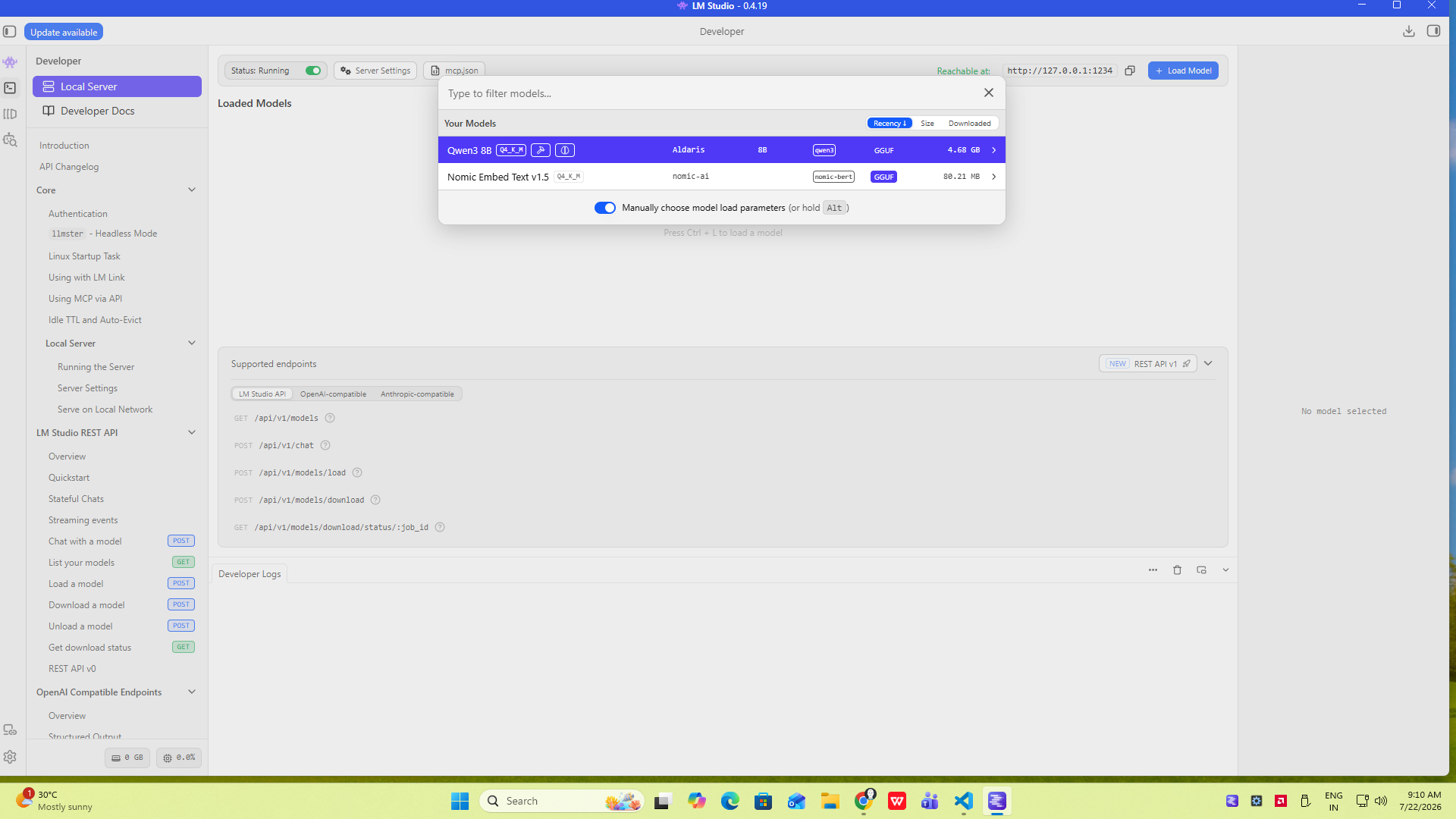
From inside the Developer tab I opened the model picker again, this time seeing both my Qwen3 8B model and a small Nomic embedding model I had grabbed earlier for a separate project. Picking Qwen3 8B opened the load dialog, and this is where the context length and GPU offload sliders actually matter.
The model supports up to roughly 40,000 tokens of context, but I kept mine set closer to 8,192 because with only 8GB of VRAM, pushing the context window higher eats into memory that would otherwise go toward keeping the whole model on the GPU. The GPU offload slider was already maxed out at 36 layers for this build, which the estimated memory panel confirmed would fit comfortably.
Confirming The Server Is Actually Live
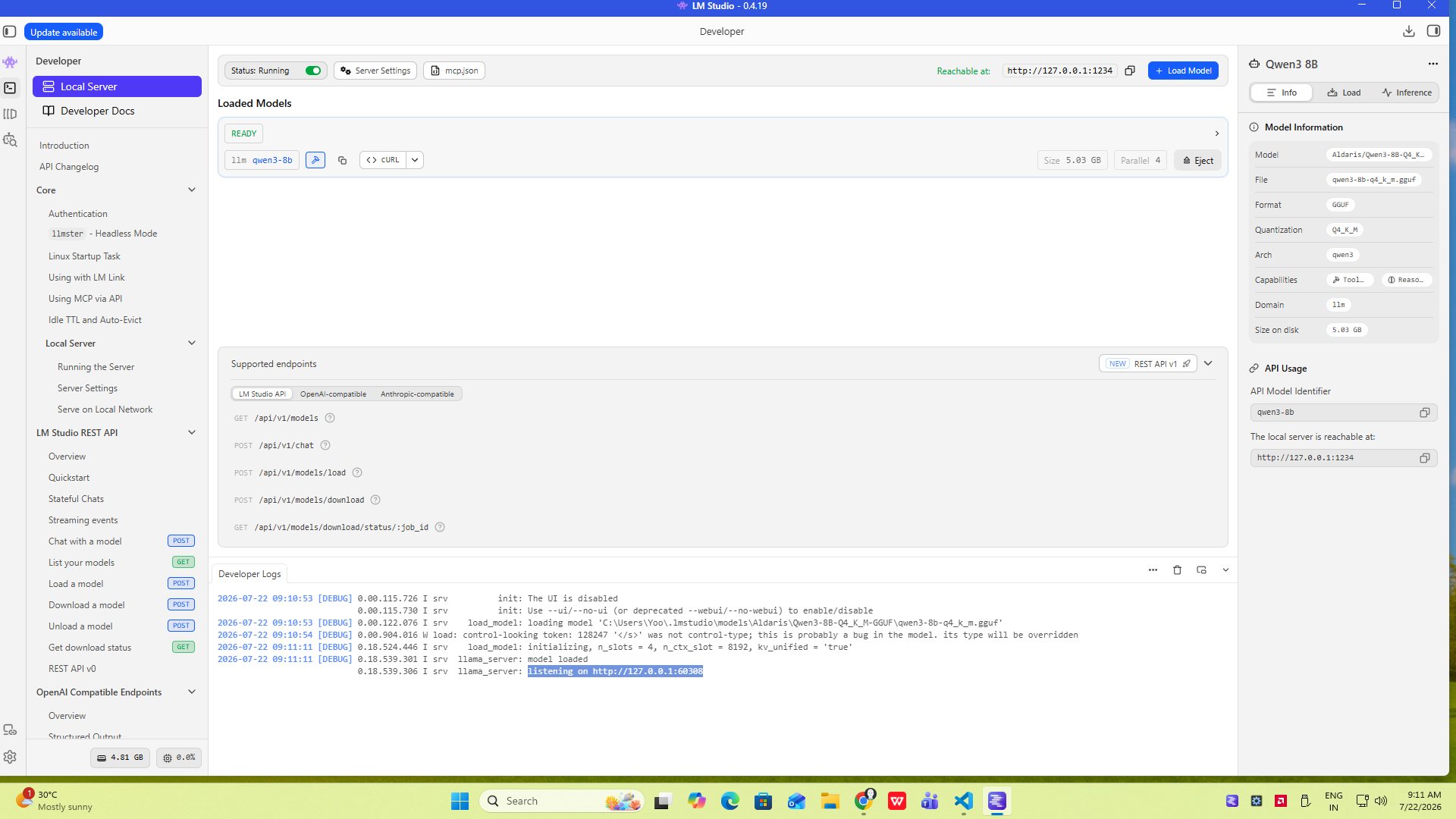
Once loaded, the model shows a clear READY status with its size on disk, quantization, and API identifier, in my case qwen3-8b. The developer logs below confirmed the model had finished loading and was listening on a local port, which is the moment you know the server side of things is genuinely working and not just sitting in a loading state.
Starting My First Chat
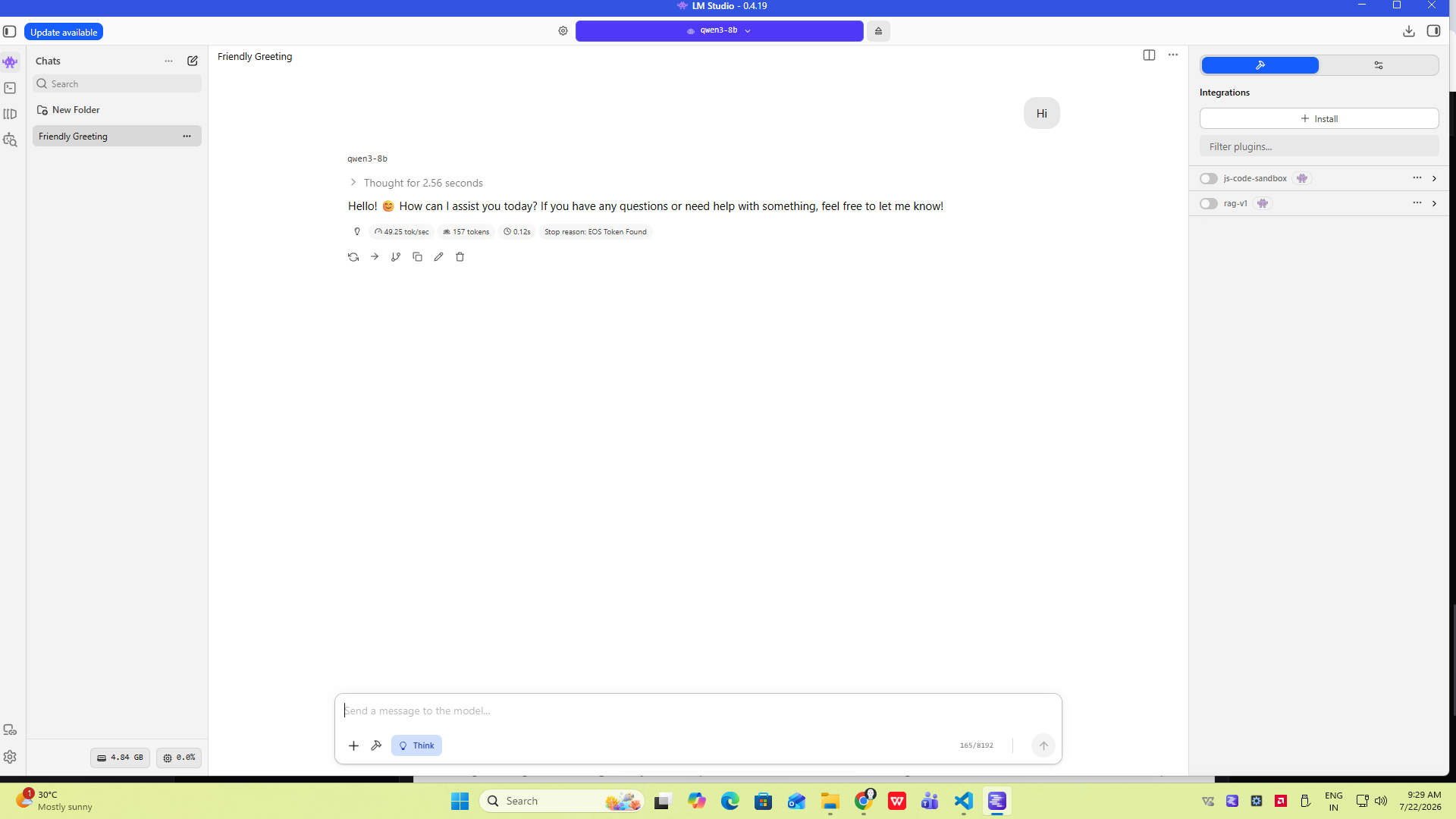
Back on the chat side, opening a new unnamed chat and picking the already loaded qwen3-8b model from the picker was instant, no reload needed since it was already sitting in memory. The right hand panel also showed a couple of integration toggles for plugins, which I left off for this first run to keep things simple.
Adjusting Context Length For Weaker Hardware
If you are running something similar to my setup, 16GB of system RAM and 8GB of VRAM, the single biggest lever you have is that context length slider in the load dialog. Dropping it from the model's maximum down to something like 4,096 or 8,192 tokens frees up real memory, which in practice means the difference between smooth responses and the whole thing stuttering or falling back to slower CPU offload. I would rather have a shorter memory window that runs fast than a huge one that chokes halfway through a reply.
Quick rule I now follow: start with the default context length, load the model, watch the estimated GPU memory number, and only raise it if there is clear headroom left over.
Where To Go From Here
Having a working local server is genuinely the useful part, because it means this model is no longer stuck inside the LM Studio chat window. You can point other tools at that same http://127.0.0.1:1234 address, which is exactly what I cover in a separate post on wiring this same local model into a code editor, using the Continue extension in VS Code to get inline AI suggestions running fully offline.
That connection took me another ten minutes to set up on top of everything here, and honestly it was the moment this stopped feeling like a toy and started feeling like a real replacement for a paid coding assistant, at least for local testing and privacy sensitive work.
The real value of LM Studio is not the chat window, it is the quiet local server sitting behind it that any tool on your machine can talk to.

Alex Chen
July 22, 2026
LM Studio
Free desktop app for running open source language models on your own computer
lmstudio.ai