
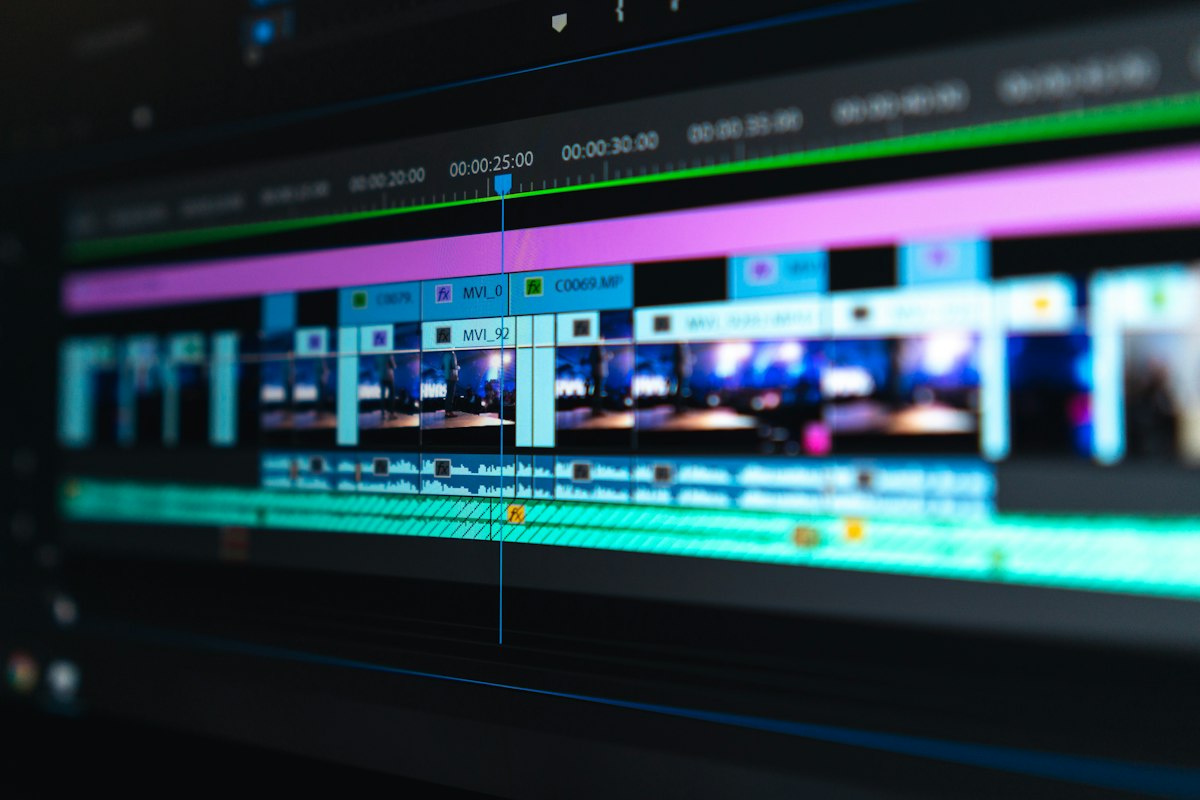
I Tested Free AI Tools to Speed Up My Video Color Grading and Thumbnail Creation for 3 Weeks
Color grading and thumbnail creation were eating 3 hours out of every video I made. I spent three weeks testing free AI tools specifically for these two tasks. Here is what changed, what the click-through rate data looked like, and which tools I kept.
Runway ML
Free AI video tool with color grade transfer, background removal, and generative video features
runwayml.com
Thumbnail AI
Free AI thumbnail generator and scorer that predicts click-through rate before you publish
thumbnail.ai
Canva Magic Studio
Free AI design suite with Magic Write, text to image, background removal and brand kit tools
www.canva.com

Marcus Webb
April 13, 2026
Quick Answer: After three weeks using Runway ML for color grading, Thumbnail AI for click-through rate prediction, and Canva Magic Studio for thumbnail production, my average per-video color grading time dropped from 80 minutes to 22 minutes and my average YouTube click-through rate improved from 3.1 percent to 4.8 percent. All three tools are free to start.
The Two Tasks That Were Stealing the Most Hours From My Video Production
I had been tracking my video production time in a simple spreadsheet for about four months before this experiment. When I reviewed the data the two tasks with the most variance and the highest total time were color grading and thumbnail creation. Color grading was taking between 60 and 100 minutes per video depending on how many different shooting locations or lighting conditions were in the footage. Thumbnail creation was taking between 45 and 90 minutes depending on how many concepts I explored before settling on a final design.
Combined these two tasks were consuming between 1.75 and 3 hours of every video's production time. That is a significant portion of a total production workflow that I had been trying to get under 4 hours per video. I decided to spend three focused weeks testing whether free AI tools could cut these two specific tasks down without hurting the visual quality of the finished videos.
Tool 1: Runway ML for AI-Assisted Color Grading
I had used Runway ML briefly for generative features but had not explored the color grade transfer capability which allows you to apply the color style of one video or image to your footage automatically. The use case that immediately appealed to me was applying a consistent cinematic color grade across footage shot under different lighting conditions without manually adjusting each clip individually.
My typical video involved footage from two or three different environments including indoor office footage, outdoor b-roll, and occasional screen recordings with different ambient color temperatures. Getting all of these to look cohesive in the final cut had been a manual process of color matching in DaVinci Resolve that required skill I had developed slowly and time I could not reduce much further through practice alone.
I uploaded a reference frame with the color look I wanted to achieve and used Runway's color grade transfer to apply that look to each clip in my timeline. The first result was not perfect. The transfer was strong on outdoor footage but overly aggressive on the screen recording clips which needed a lighter touch. I applied the grade at 60 percent strength on the screen clips and 85 percent on the live footage clips which produced a consistent look that required only minor manual fine-tuning afterward.
By the end of week one I had a system. I maintained four reference frames for different shooting scenarios I used regularly and applied the appropriate one to each clip type rather than working from a single reference. The color grading process dropped from an average of 80 minutes to 22 minutes per video. A colleague I showed the finished videos to without telling them I had changed my workflow said the color consistency looked better than my previous work.
Runway ML Color Grading Results After 3 Weeks
- Average color grading time: dropped from 80 minutes to 22 minutes per video
- Color consistency across different shooting conditions: improved according to external feedback from a colleague
- Runway free plan usage: color grade transfer used the generation credits at a rate that reached the free limit by week 3
- Manual fine-tuning still required: yes, approximately 8 minutes per video after AI grade transfer
- Video quality comparison: no viewer comments indicating reduced visual quality, two comments referencing the cinematic look positively
Building a library of four reference frames for my common shooting scenarios was the single change that made Runway color grading consistently fast. Without reference frames I was spending time deciding what look to aim for on each video. With saved references that decision was already made and I was applying a known result rather than exploring.
Tool 2: Thumbnail AI for Click-Through Rate Prediction Before Publishing
Thumbnail AI analyzes your thumbnail design and generates a predicted click-through rate score based on factors including visual contrast, face presence and emotion, text readability, color psychology, and comparison to high-performing thumbnails in your category. Before this experiment I had been designing thumbnails based on what looked good to me which is not the same as what drives viewers to click.
I uploaded the thumbnail I had designed for my first video of the experiment and received a score of 52 out of 100 with specific feedback. The text was too small to read at mobile viewing size. The background color was similar to the subject's clothing making them blend into the frame. The emotional expression was neutral rather than conveying a clear reaction that creates curiosity. Each piece of feedback was specific enough to act on directly.
I revised the thumbnail based on the Thumbnail AI feedback, making the text larger, changing the background contrast, and replacing the subject photo with one showing a more expressive reaction. The revised thumbnail scored 74 out of 100. I published the video with the revised thumbnail and the click-through rate in the first 48 hours was 4.6 percent. My previous three videos had averaged 3.1 percent click-through rate with thumbnails I had designed without this feedback process.
I ran every thumbnail through Thumbnail AI for the remaining weeks of the experiment and revised any that scored below 65. My average thumbnail score across the three weeks was 71 and my average click-through rate across the same period was 4.8 percent compared to the 3.1 percent baseline from the month before the experiment.
Thumbnail AI Results Across 3 Weeks
- Average thumbnail score before revision: 54 out of 100
- Average thumbnail score after revision: 71 out of 100
- Average click-through rate before experiment: 3.1 percent across previous month
- Average click-through rate during experiment: 4.8 percent across 3 weeks
- Thumbnail creation time impact: increased by 15 minutes per video for the revision process but reduced overall because fewer concepts were explored
- Most common feedback actionable item: text size too small for mobile viewing, appeared in 7 of 9 thumbnails initially reviewed
Tool 3: Canva Magic Studio for Faster Thumbnail Production
The third tool addressed the production speed of thumbnail creation itself. I had been building thumbnails from scratch in Photoshop which gave me full control but required significant time for each design. I switched to Canva Magic Studio for the thumbnail production stage of the experiment while using Thumbnail AI to evaluate each result before finalising.
The Text to Image feature in Canva generated custom background visuals from a text description matching my video topic in under 90 seconds. Instead of sourcing stock photos or using screenshots from the video itself I described the visual context I wanted and generated it directly. The backgrounds were distinctive rather than recognisable stock imagery which improved the visual differentiation of my thumbnails in search results.
The Magic Write feature generated three to four thumbnail headline options from a brief description of the video topic. Rather than spending time writing and rewriting thumbnail text myself I reviewed the AI suggestions and selected or adapted the most compelling one. The headline writing step dropped from 10 to 15 minutes of iteration to under 4 minutes of selection and minor editing.
Combined with Thumbnail AI scoring my thumbnail production workflow became: generate background in Canva, add headline from Magic Write suggestion, add subject photo with background removed, score in Thumbnail AI, revise the specific elements flagged, publish. The total time for this workflow averaged 28 minutes per thumbnail compared to the 45 to 90 minutes I had been spending before the experiment.
Canva Magic Studio Thumbnail Results
- Thumbnail production time: dropped from 45 to 90 minutes to average 28 minutes per thumbnail
- Background generation: custom AI backgrounds more visually distinctive than stock photos in search results
- Headline writing time: dropped from 10 to 15 minutes to under 4 minutes using Magic Write suggestions
- Brand consistency: saved brand colors and fonts applied automatically to every new thumbnail
- Total thumbnail workflow including Thumbnail AI scoring and revision: 43 minutes versus previous 45 to 90 minutes at higher quality output
Full 3-Week Combined Results
- Color grading time per video: dropped from 80 minutes to 22 minutes
- Thumbnail creation time per video: dropped from 67 minutes average to 43 minutes including scoring and revision
- Total time saved per video on these two tasks: approximately 82 minutes
- Average YouTube click-through rate: improved from 3.1 percent to 4.8 percent
- Viewer comments on visual quality: no negative feedback, two positive comments on visual consistency
- Total cost of all three tools during the experiment: zero dollars
Final Thoughts
Three weeks of targeting the two most time-consuming tasks in my video production workflow with free AI tools produced a combined saving of 82 minutes per video and a 55 percent improvement in click-through rate. The click-through rate improvement is the result I care about most because it translates directly into views and channel growth rather than just production efficiency. Runway ML made my footage look more consistent in less time. Thumbnail AI told me why my thumbnails were underperforming in specific and actionable terms. Canva Magic Studio made the production of better thumbnails faster than the production of worse ones had been before. That combination is exactly what a good tool stack is supposed to do.